Catalog ads
How to add your logo to Meta catalog ads (DPA)
Convinci team. Published 2026-09-26, updated 2026-09-26.

A plain catalog ad (also called a dynamic product ad, or DPA) does not say who is selling. The shopper sees a product on a white square, and it could be from any store. Your logo fixes that in one glance.
Meta gives you a few ways to add it. Each one works in a different place, and each has a cost. Here they are, with the steps for Meta's newest tool first.
Steps to add a logo with Meta image templates
These steps follow Meta's image templates page. Meta says the feature "is being gradually introduced and may not be available to you yet."
- Go to Commerce Manager and select your catalog.
- Open the Catalog tab and go to Image templates.
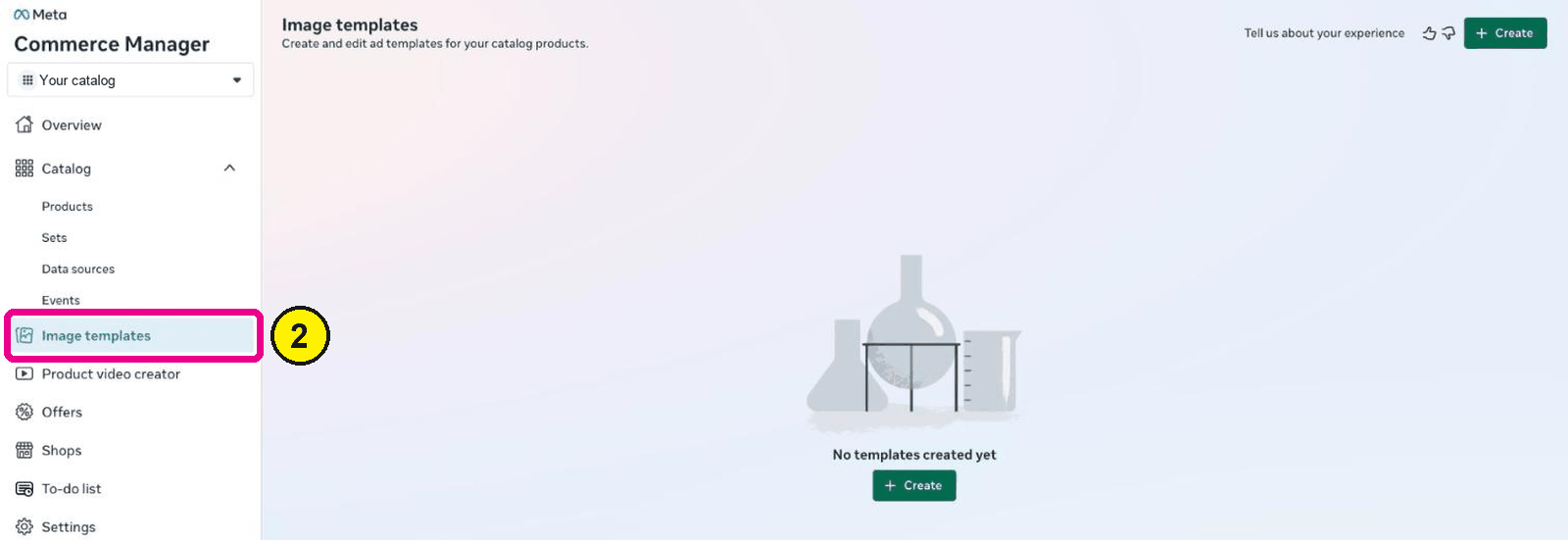
Commerce Manager, Image templates. Screens as of Oct 2026. - Start from a blank canvas or a starter template, and give it a name.
- Add a product layer. It is required and shows the product image from your catalog.
- Add an image layer and upload your logo as a JPG or PNG.
- Move and resize the logo in the Template panel. Keep it in a corner, off the product.
- Make a 4:5 version too, then click Save.
- In Ads Manager, in a Sales campaign with product data on, click Choose template in the Ad creative section.
- In Advantage+ creative, turn off background generation and dynamic overlays unless you want them over your template.

Meta says image templates support single image and carousel formats only, not collection.
Way 1: Meta image templates
Image templates are Meta's new design tool for catalog ads. You can add your logo, text, a background, catalog fields like price, and stickers. Layers can even show only for some products, using conditional display.
The catch is where it lives. You choose the template on the ad. So adding it to a live ad is a change to the ad. Meta's significant edits page lists "any change to ad creative" as a significant edit. The ad set goes back into learning.
For a new ad, that is fine. For a winning ad, think twice. Our Convinci vs Meta's catalog ad editor page compares the two in depth.
Way 2: frames, until October 30, 2026
Frames let you lay a graphic, like a border with your logo, over each product image. Meta's frames page says frames "will no longer be available after October 30, 2026." Meta is replacing them with image templates.
If you use frames today, plan the move now. Our page on Meta catalog ad frames ending has the steps.
Way 3: an intro card in a carousel
In a carousel catalog ad, you can add an intro card before the products. Meta's broad audience page suggests one "to help introduce your brand."
This puts your logo on one card, not on every product. It also only works in carousel. When Meta shows a single product, the intro card is not there.
Way 4: your logo in the catalog image
The last way is to put your logo into each product image. Then send the new images to Meta through a supplementary feed. The logo shows wherever the image shows, in every format and placement.
Because the change is in the catalog, the ad is not edited. Read does changing catalog images reset learning for the full answer.
The work is the hard part. You need one designed image per product, a new URL for each, and a feed that points to them. By hand, that means every new product needs a new card.
Convinci does that part. It builds a card for each product from your Shopify store, with your logo or store name. It also adds the price, a true sale badge and your stars. Here is a card from the Northbank Supply sample store.

The rating and price are sample data. Try it on your own products in the free preview, and see plans on the pricing section.
Which way to pick
| Way | Where the logo shows | Edits the ad | Available |
|---|---|---|---|
| Image templates | Every product, single image and carousel | Yes | Rolling out |
| Frames | Every product | Yes | Ends after Oct 30, 2026 |
| Carousel intro card | One card in carousels only | Yes | Now |
| Logo in the catalog image | Every product, wherever the image shows | No | Now |
Tips for a logo that works
- Keep it small. The product is the star. A logo in a corner is enough.
- Keep it off the product. Never cover the item you are selling.
- Use a clean file. A PNG with a clear background looks sharp on any color.
- Check contrast. A dark logo on a dark photo disappears. Test on your darkest and lightest products.
- Check every shape. Look at the square and the 4:5 version. Our catalog ad image size guide lists the sizes.
Questions
- Can I add my logo to Facebook catalog ads?
- Yes. Use Meta's image templates and add your logo as an image layer. Or put your logo into each catalog image and send the images through a supplementary feed.
- Are Meta catalog frames going away?
- Yes. Meta says frames will no longer be available after October 30, 2026. Meta is replacing them with image templates.
- Does adding a logo reset the learning phase?
- If you add it on the ad, with a template or frame, that changes ad creative. Meta lists that as a significant edit. A logo added to the catalog images through a feed does not edit the ad.
- Where should the logo go on a catalog ad?
- Put it in a corner, small and off the product. Check that it stays clear in both the square and the 4:5 versions of the image.
- Do image templates work with collection ads?
- No. Meta says image templates support single image and carousel formats only, not collection. For collection ads, put the logo in the catalog images instead.
See these badges on your own products before you pay anything.
Try the free previewFree for 10 products. See pricing.
 Your store
 Your card