Product feeds
Supplementary feeds for Meta catalog ads (DPA)
Convinci team. Published 2026-09-11, updated 2026-09-26.
 Your store
 Your card
Most stores have one product feed and it comes out of the shop platform. Shopify writes it, an app writes it, or a developer wrote it once and left. Whatever the source, it is the same file that feeds the store, the sales channels and sometimes Google.
That makes it a bad place to put ad decisions. Change an image there to add a sale badge and you have changed it for every channel reading that feed. Change a title to test a shorter one and your storefront may change with it.
A supplementary feed solves that. It sits on top of the primary feed and wins where the two disagree.
What a supplementary feed can and cannot do
It can override fields. It cannot add products.
If a product id is not in the primary feed, putting it in a supplementary feed does nothing. Meta joins on id, and a row with no match is skipped. This is the single most common reason a supplementary feed appears to do nothing at all.
The fields worth overriding in practice:
image_linkandadditional_image_link, for badged or restyled creative.titleanddescription, for ad wording that is not your storefront wording.sale_priceandsale_price_effective_date, for a promotion window.custom_label_0throughcustom_label_4, for grouping products into product sets.availability, when your platform reports it late.
How to set one up
- Export the product ids you want to change. They have to be the ids exactly as they appear in the primary feed, including any prefix like
shopify_US_. - Make a CSV with
idin the first column and only the fields you are overriding in the rest. Do not include columns you are not changing. A blank cell is treated as a value in some setups and clearing a field by accident is a bad afternoon. - In Commerce Manager, open the catalog, go to Catalog then Data sources, and choose the primary feed.
- Choose to add a supplementary feed against that data source.
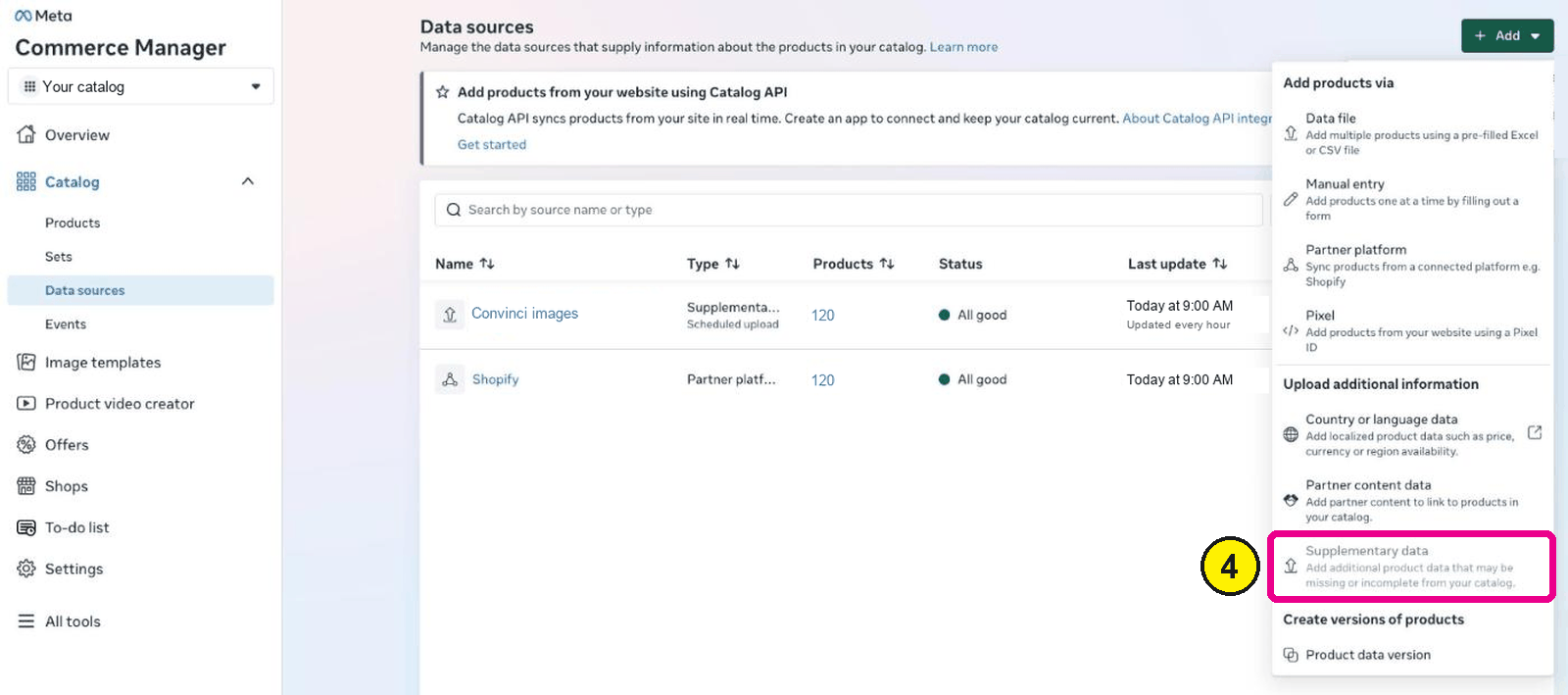
Commerce Manager, Catalog, Data sources, Add. Screens as of Oct 2026. - Upload the file or give a scheduled URL. A scheduled URL is better for anything recurring, because the sale then starts and ends on its own.
- Map the
idcolumn to the id field, and each other column to its field. - Wait for the run to finish, then open a product in the catalog and check the field shows the new value.

Step seven is not optional. A feed that uploaded with zero errors can still have matched zero products.
Primary feed or supplementary feed
| Question | Primary feed | Supplementary feed |
|---|---|---|
| Adds new products | Yes | No |
| Overrides a few fields | Awkward | Yes |
| Affects other sales channels | Often | No |
| Easy to undo | No | Delete it |
| Good for a sale window | No | Yes |
| Good for ad only images | No | Yes |
The id problem
Nearly every failed supplementary feed is an id problem.
Shopify feeds through the Facebook sales channel usually prefix ids. The product with id 7412345678 in your admin might appear as shopify_US_7412345678_41234567890. The last part is the variant. Catalog ads (also called dynamic product ads, or DPA) run on variants, not products, so your supplementary feed has to carry the variant level id.
The safe way to get them is to export the catalog from Commerce Manager and read the ids out of that export. Do not build them from your admin by hand.
If your ids are right and rows still do not match, check for a hidden character. A CSV saved from a spreadsheet can carry a byte order mark on the first cell. That turns id into something that is not id.
Scheduling a sale with one file
The tidy pattern for a promotion is one scheduled supplementary feed with three columns: id, sale_price and sale_price_effective_date. Set the date range and the price. Meta applies the sale price inside the window and drops back out of it after.
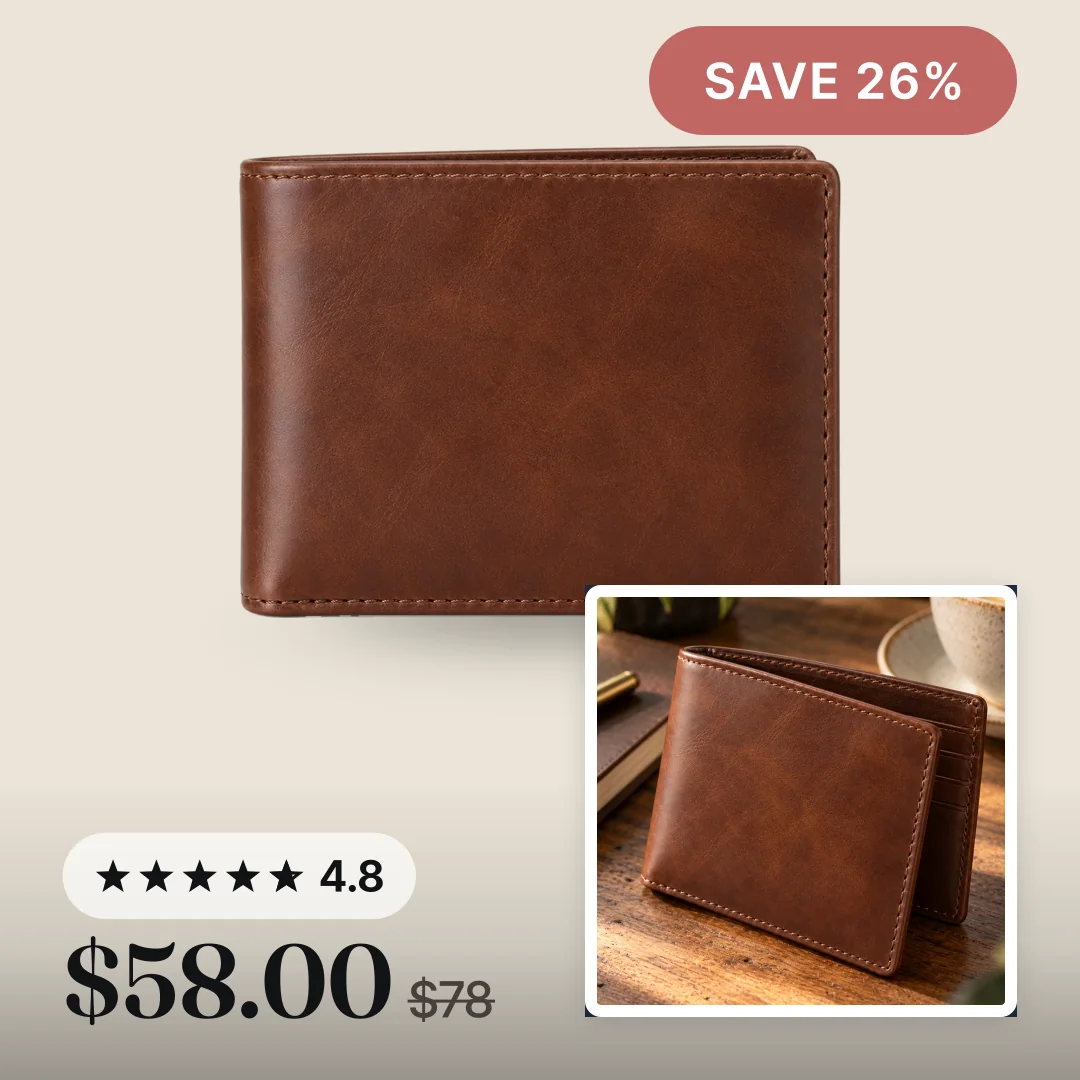
Add image_link to the same file if you are also swapping in badged creative, and the sale visuals and the sale price move together. When the promotion is over, delete the feed. See how to add sale badges to Meta catalog ads for what to put on the image. Product feed optimisation for Meta covers the fields worth getting right in the primary feed.
What to check after every upload
- The data source shows the run as finished, not queued.
- The number of items updated is close to the number of rows you sent.
- One product you know by name shows the new value in the catalog.
- The ad preview shows the new image, not a cached old one. Image changes can take some hours to reach delivery.
You can see badged creative on your own catalog before you build a feed. Paste your store URL into the preview.
For how fast each kind of change reaches Meta, read how long until catalog changes show in ads.
Questions
- What is a supplementary feed on Meta?
- It is a second file uploaded against a primary catalog feed. It carries a product id and only the fields you want to change, and Meta merges those values over the primary feed.
- Can a supplementary feed add new products?
- No. It only updates products that already exist in the primary feed. Rows with an id that does not match anything are ignored.
- Why did my supplementary feed match zero products?
- Almost always the ids. Catalog ids often carry a platform prefix and a variant suffix, so the id in your store admin is not the id in the catalog. Export the catalog and copy the ids from there.
- How many supplementary feeds can I have?
- Meta allows several against one primary feed. Keep the number small and give each one a job. One for sale pricing, one for creative, so you can tell which file changed what.
- How long before a supplementary feed shows in ads?
- The catalog usually updates within an hour of a successful run. Delivery can lag longer for images, because a changed image URL has to be fetched again.
- Do I need a supplementary feed to run a sale?
- No, but it is the cleanest way. The alternative is editing your primary feed, which changes the same data for every other channel reading it.
See these badges on your own products before you pay anything.
Try the free previewFree for 10 products. See pricing.