Sale and promotion
How to add sale badges to Meta catalog ads (DPA)
Convinci team. Published 2026-09-11, updated 2026-09-26.

A catalog ad (also called a dynamic product ad, or DPA) is not built in Ads Manager. You upload a feed, Meta picks the products, and Meta draws the card. That is why a sale badge is harder than it looks. You cannot open the ad and drop a graphic on it, because the ad is different for every shopper who sees it.
So the badge has to come from somewhere else. There are three places it can come from, and they are not equally good.
Option one, Meta's own overlay
Meta can draw a small label on the corner of a product image for you. In Ads Manager it sits under the ad level creative settings, usually called an information label or a price overlay. You pick a shape, a corner and a colour, and Meta reads the price fields in your feed to decide what the label says.
What you get is a price drop label, a free shipping label or a star rating. It is free and it takes two minutes.
The limits matter. The label is one of a handful of fixed shapes, so every advertiser using it looks the same. You cannot set your own wording. The price drop label only appears when sale_price is lower than price in the feed. The discount has to be real and already in the feed. And the label sits at a fixed corner, so on a product shot with a busy corner it lands on top of the product.
Use it when you want something today and you do not care about matching your brand.
Option two, burn the badge into the image
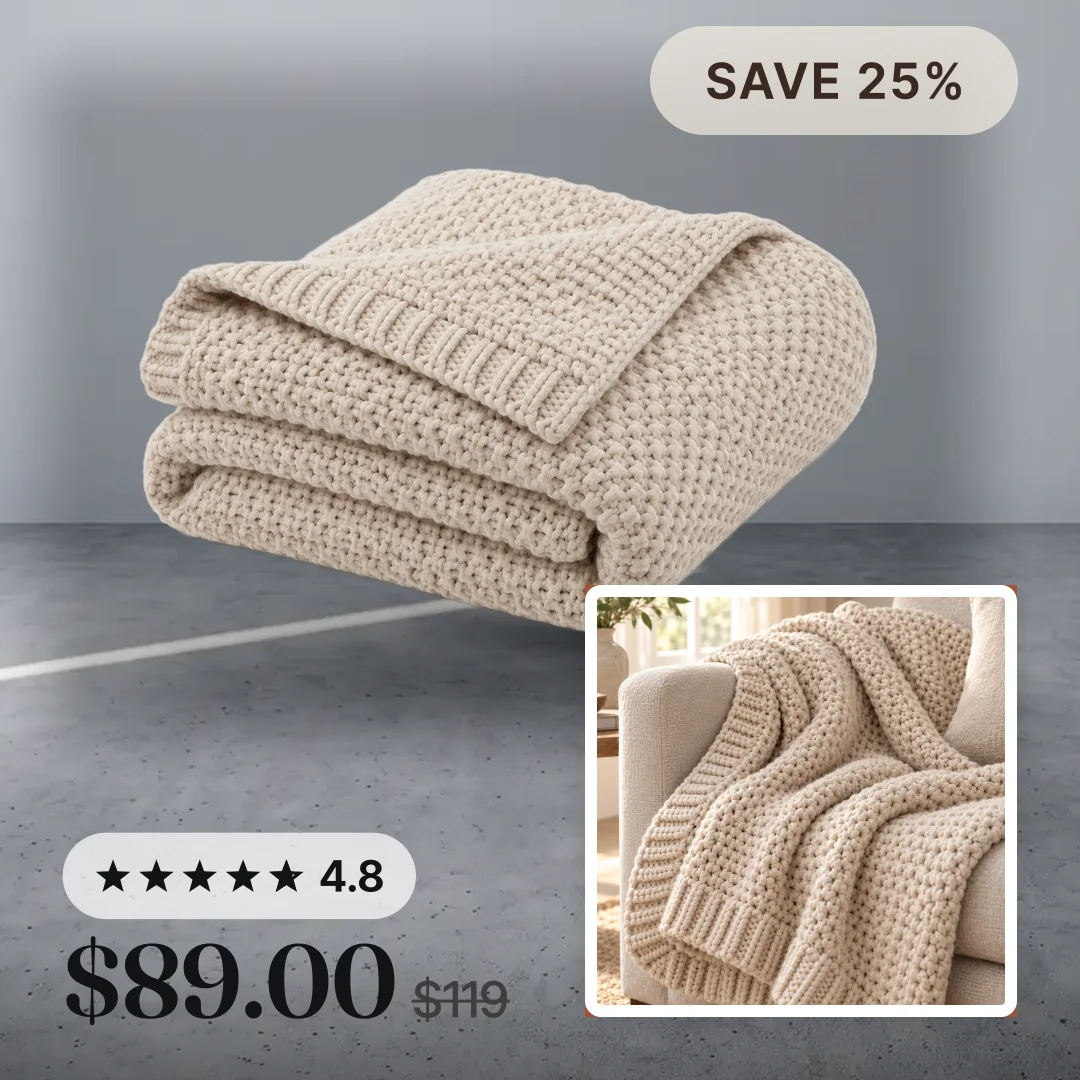
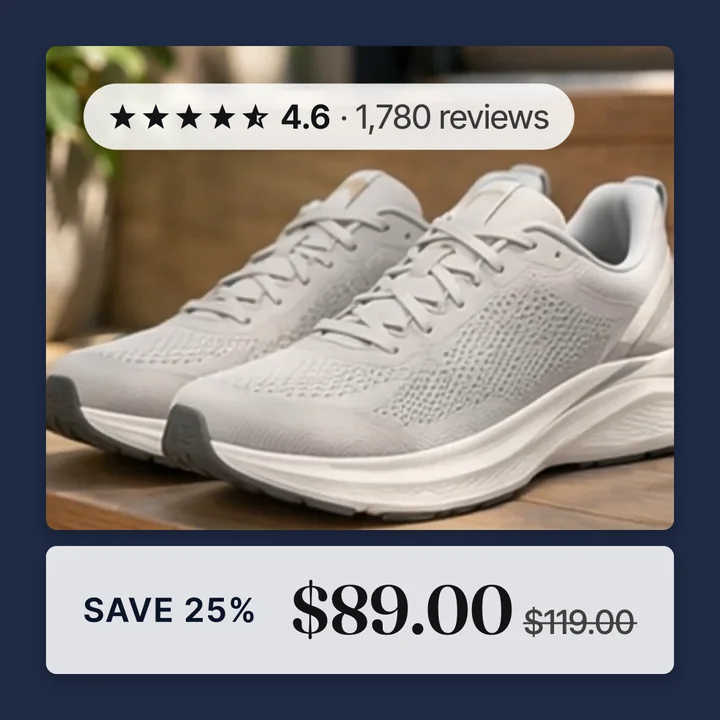
The second option is to make a new image with the badge already on it, and point the feed at that image.
Your feed has an image_link column. Meta downloads whatever is at that URL and uses it as the product card. Nothing stops that image from having a badge drawn on it. Meta does not know the difference between a plain product shot and one with a graphic on it.
The work is in the making. You need one badged image per product, hosted somewhere Meta can reach, and you need to take it down again when the sale ends. For fifteen products that is an afternoon. For fifteen hundred it is not a job a person does by hand.
There is one rule to know before you start, and it is the one that gets people rejected. See the overlay rules below.
Option three, a supplementary feed with a sale image
The third option is the same idea with less damage to your main feed. Instead of editing image_link in your primary feed, you upload a supplementary feed that only carries id and image_link. Meta joins it to the primary feed on id and the badged image wins.
This is the option we would push most stores towards for a promotion, because it is reversible. When the sale ends you delete the supplementary feed and the original images come back with no edits to undo. Your product data stays in one place and your campaign images stay in another.
The full setup is in supplementary feeds on Meta.
The three options side by side
| Meta's overlay | Badged image in the main feed | Badged image in a supplementary feed | |
|---|---|---|---|
| Setup time | Minutes | Hours to days | Hours, then minutes per sale |
| Looks like your brand | No | Yes | Yes |
| Wording you control | No | Yes | Yes |
| Reversible | Yes | You re-upload the feed | Delete the feed |
| Works at 1,000 products | Yes | Only with a renderer | Only with a renderer |
| Risk of rejection | Low | Real, see below | Real, see below |
The overlay rules that get products rejected
Meta allows promotional graphics on catalog images. Google does not, and this is where stores get caught, because most people run one product feed into both.
If the same image URL feeds Google Merchant Center, a badge on it can get the product disapproved for promotional overlay. The fix is not to stop badging. The fix is to keep two image fields, or two feeds, so the badged image only ever reaches Meta. We wrote that up in promotional overlays on Google Shopping images and in products disapproved for promotional overlay.
Within Meta itself there are still rules. Three things get an ad rejected. A badge that covers the product, a badge that imitates a Facebook or Instagram interface element, and a claim you cannot back up. Keep the badge to a corner or a band. Keep the claim true against the feed price.
What a good sale badge actually says
Short. One number. The same wording everywhere.
- Name the saving the way the shopper thinks about it. A percentage for fashion and homeware, a dollar amount for anything over about $200.
- Put the badge where the product is not. Most product shots have a clean top left or bottom right.
- Use one colour that is yours and hold it across the whole sale.
- Do not stack three graphics on one card. A badge and a price is enough.
You can see this on your own products before you build anything. Paste your store URL into the preview.
Planning a big sale? Our Black Friday catalog ads plan lays out the weeks before and after.
Questions
- Can I put a sale badge on a catalog ad?
- Yes. Either use Meta's built in price drop overlay, or serve a product image that already has the badge drawn on it through your feed. Meta allows promotional graphics on catalog images.
- Does a sale badge break Meta's ad policy?
- Not on its own. A badge is rejected when it covers the product. It is also rejected when it copies a Facebook or Instagram interface element, or claims a discount the feed price does not support.
- Why does my price drop overlay not show up?
- The overlay needs a `sale_price` lower than `price` in the feed, and the sale price has to be current. The placement also has to support the label. Check the feed first.
- Can I use the same badged image on Google Shopping?
- No. Google disallows promotional overlays on product images and will disapprove the product. Keep a clean image for the Google feed and a badged image for Meta.
- How many products can I badge at once?
- By hand, about twenty before it stops being worth the afternoon. Past that you need something that renders the badge per product from your catalog and gives you image URLs back.
- What happens to the badge when the sale ends?
- If it lives in a supplementary feed, you delete the feed and the original images return at once. If you edited your main feed, you have to re-upload the original image URLs.
See these badges on your own products before you pay anything.
Try the free previewFree for 10 products. See pricing.
 Your store
 Your card