Product feeds
How to connect Shopify to a Meta catalog for DPA (2026)
Convinci team. Published 2026-09-26, updated 2026-09-26.
 Your store
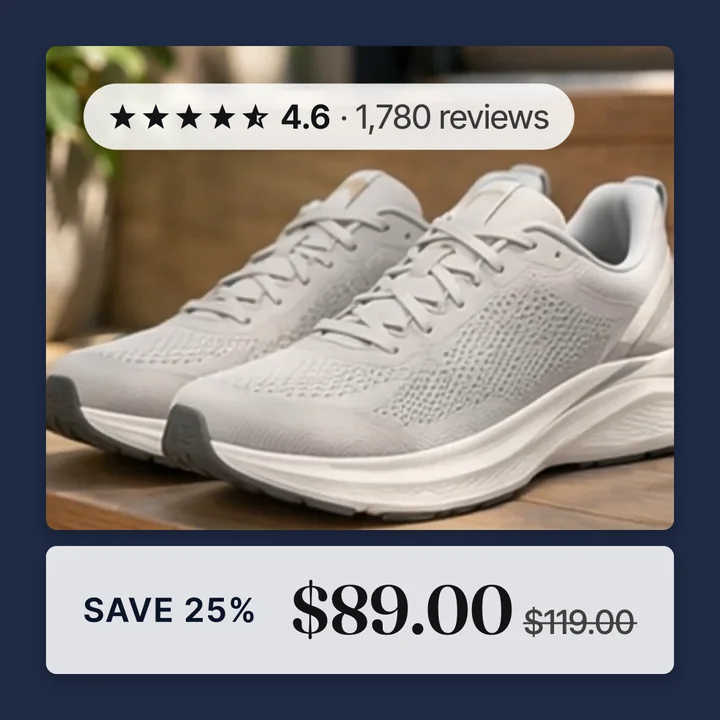 Your card
Your catalog ads (also called dynamic product ads, or DPA) can only be as good as the catalog behind them. For a Shopify store, that catalog comes from one place: the Facebook and Instagram by Meta sales channel.
Shopify's own setup guide covers it. Here is the short version, plus the checks and fixes we wish someone had told us.
Steps to connect Shopify to a Facebook catalog
- In your Shopify admin, go to Settings, then Sales channels.
- Open the Shopify App Store from there and search for Facebook.
- Pick Facebook and Instagram by Meta and click Add channel.
- Click Start set up.
- Click Connect account and sign in to Facebook.
- Connect your Meta business portfolio.
- Connect your Facebook Page and your ad account.
- Connect your pixel so the store can send shopping events.
- Read and accept the terms.
- Click Finish setup, then wait for your products to sync.
Before you start, check who is doing the setup. The person needs full control of the business portfolio and the Page. More on that below.
What gets synced to Meta
The channel builds one product catalog. Shopify says that one catalog serves Facebook Shop, Instagram Shopping and Facebook marketing. So your shop, your product tags and your ads all read from the same place.
Each product brings its data with it. That means the title, the photos, the price and the stock. Prices and stock stay current because they keep coming from your store.
This matters later. Anything you change in the catalog can show up in all three places. We come back to this when we talk about images.
If you want to know what the catalog then does in your ads, read what are dynamic product ads. For the newer name and flow, see Advantage+ catalog ads explained.
Checks to run after setup
Do not assume it worked. Run these three checks.
Products in Commerce Manager. Open the catalog in Commerce Manager. Count the items. Compare that to the number of active products in Shopify. Open a few items and check the photo, price and stock.
Pixel events. Catalog ads need a Meta Pixel on your site with the right events. Meta's requirements page lists what you need. Visit a product page and add it to your cart. Then check that the events came through in Meta.
Content IDs. Each product has a content ID in the catalog. The pixel events should send the same IDs. If they do not match, Meta cannot tie a view to a product. Then your ads cannot show people the items they looked at.
Common problems and how to fix them
You cannot connect the accounts. The person doing setup needs full control of the business portfolio and the Page. Staff with less access get stuck. Ask the owner of the portfolio to give full control, or to run the setup.
Something in the channel looks wrong. Shopify says the channel is maintained by Meta. So how it works inside comes from Meta, not Shopify. Shopify's guide still covers the setup steps.
Commerce Manager keeps sending you to Shopify. When you try to edit a product in Commerce Manager, it redirects you to Shopify. Your store is the source of the data. But this also hides Data sources, which you need to add a supplementary feed.
Here is the fix, from Meta's supplementary feeds page.
- In Commerce Manager, go to Settings, then Catalog.
- Turn off the switches that redirect you to Shopify.
- Go to Catalog, then Data sources.
- Click + Add, then Supplementary data.
If another tool already sets your images through a feed, only one can win for each field. You have to choose which one stays.
Next step: better images without touching your store
Now your catalog works. But the photos in it are your shop photos. On a phone, a plain white square does not say who you are. Our guide on how to make catalog ads look better walks through the fix.
The clean way to change ad images is a supplementary feed. Meta matches each row to a product by content ID. The ID must match exactly in both feeds. When the same field is in both, the supplementary feed wins. Meta says your primary feed won't be changed. So your Shopify store keeps its own photos.
A supplementary feed cannot change the price, sale price, stock or content ID. It cannot add or delete products either. That is good. Prices and stock keep coming from your store.
Convinci uses this route. It turns your Shopify photos into branded ad cards with your store name or logo, price, a true sale badge and your stars. Then it publishes a supplementary feed that swaps only the image links. Your campaigns, ad sets and ads are not touched. Delete the data source and Meta puts the plain images back on the next fetch.

One caveat. The catalog also feeds Facebook Shop, Instagram product tags and Marketplace. A badge image can show there too, and Meta can reject a shop listing with a promo overlay. If you sell on those surfaces, turn off the sale badge. Convinci hosts the images and gives you one feed link either way.
Setup takes under 2 minutes. Paste your store link into the free preview to see your own products as ad cards. No account and no card needed. Plans are on the pricing page. For more on feeds, see product feed optimisation for Meta.
Next, see how Shopify product photos become Meta catalog images.
Questions
- How do I connect Shopify to a Facebook catalog?
- In Shopify, go to Settings, then Sales channels, and add Facebook and Instagram by Meta. Connect your Facebook account and business assets, accept the terms, and click Finish setup.
- Does changing Meta catalog images change my Shopify store?
- Not if you use a supplementary feed. Meta says the supplementary feed overrides the primary feed in Meta, and your primary feed won't be changed. Your store keeps its own photos.
- Is Facebook and Instagram by Meta an app?
- No. Shopify calls it a sales channel, not an app. You add it from the Shopify App Store, but it sits under Sales channels. Meta maintains it.
- Why can't I edit products in Commerce Manager?
- For Shopify stores, Commerce Manager sends product edits back to Shopify. To reach Data sources, go to Settings, then Catalog, and turn off the redirect switches.
- Do I need a separate catalog for Facebook and Instagram?
- No. The channel gives you one catalog for Facebook Shop, Instagram Shopping and Facebook marketing. You only need a second, ads only catalog if you want ad images kept off your shop.
See these badges on your own products before you pay anything.
Try the free previewFree for 10 products. See pricing.