Product feeds
How Shopify product photos become Meta catalog ad (DPA) images
Convinci team. Published 2026-09-26, updated 2026-09-26.
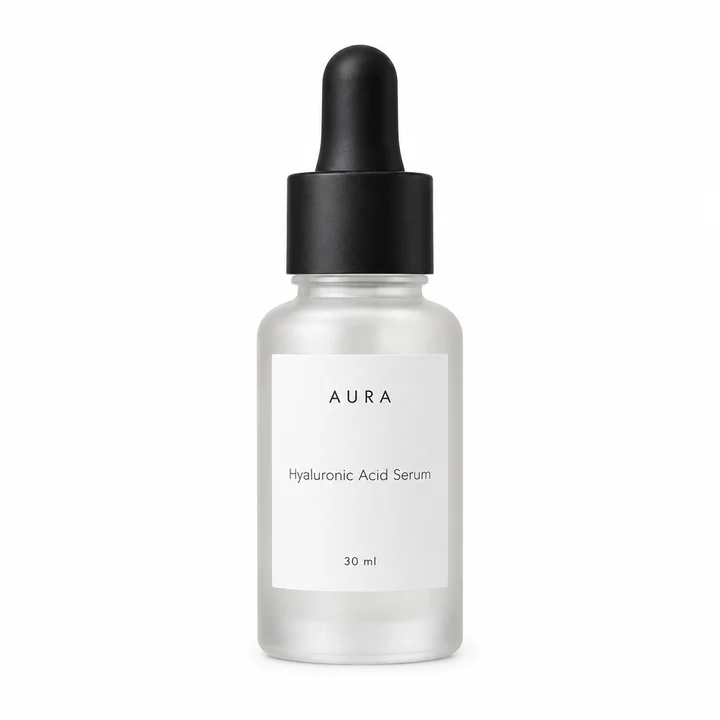
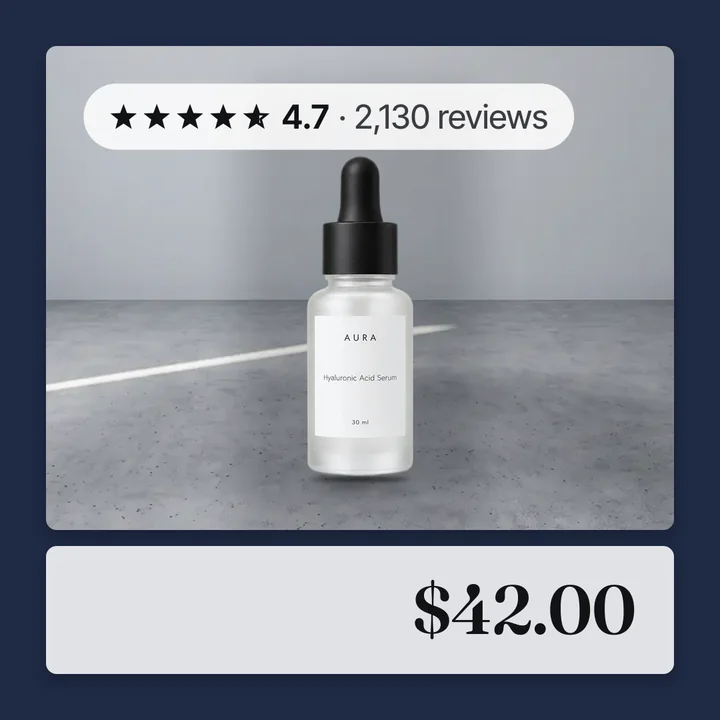
You uploaded photos to Shopify. Now they show up in your Meta catalog ads (also called dynamic product ads, or DPA). But which photo, and why that one? And how do you change it without breaking anything?
This page follows a photo from your Shopify admin to a live catalog ad. Every Meta and Shopify rule here links to their help pages.
Steps to get the right photo into your catalog
- Connect Shopify to Meta with the Facebook and Instagram app. Our guide to connect Shopify to a Meta catalog walks through it.
- Include each product in the Facebook and Instagram sales channel. Products that are excluded do not sync.
- Put the best photo first on each product. The first photo becomes the main catalog image.
- Set a photo for each variant if your variants look different, like colors.
- Save a small change to the product after you reorder photos. That triggers the new order to sync.
- Check the product in Commerce Manager under Catalog, then Products.
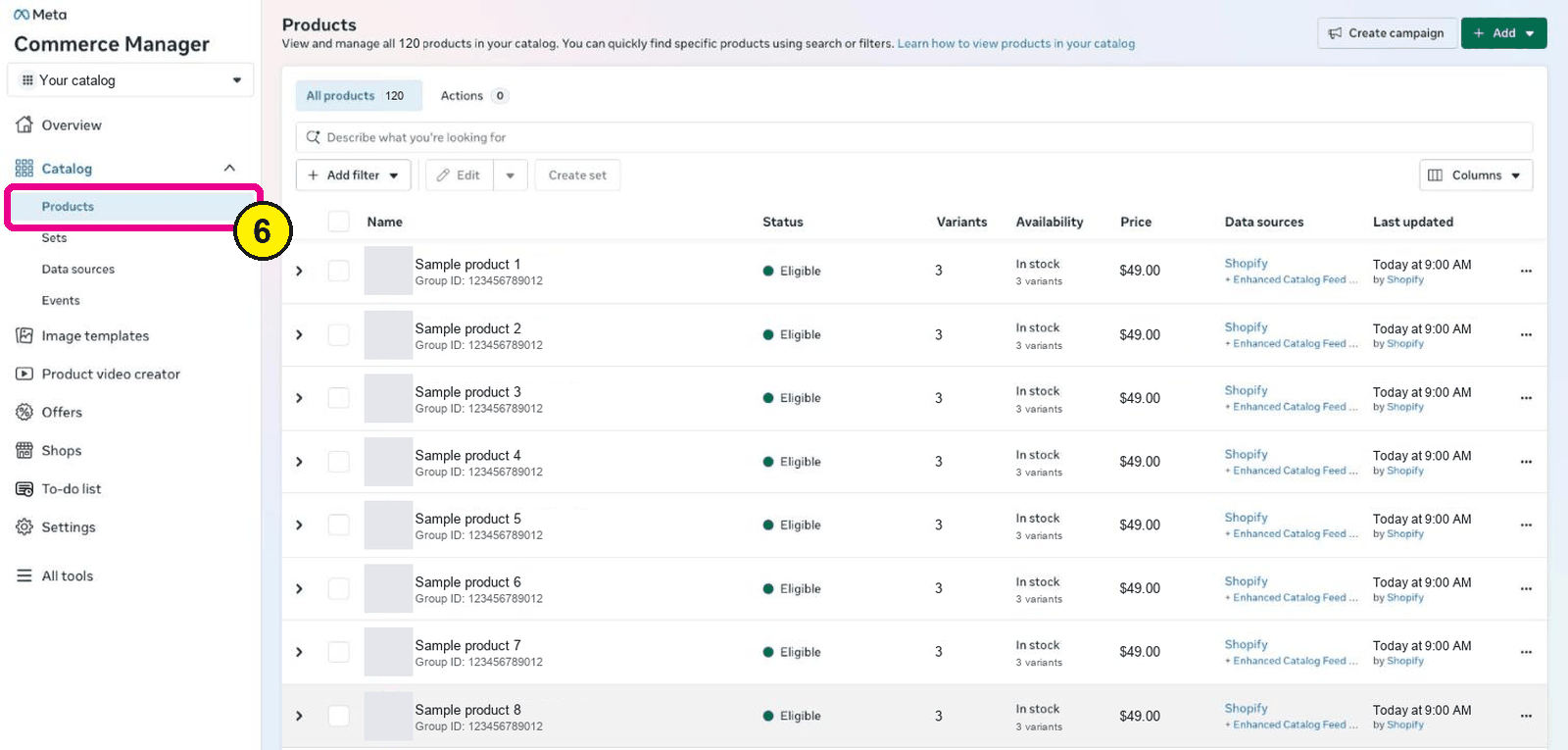
Commerce Manager, Catalog, Products. Screens as of Oct 2026. - Look for image issues in the product's Status and issues panel, and fix them in Shopify.
- Add designed images through a supplementary feed if you want more than the plain photo.

How the sync works
Meta's page on managing your catalog with Shopify says your product data syncs to Commerce Manager "every few minutes." You keep editing products in Shopify. Meta advises against editing them in Commerce Manager, since the next sync overwrites the change.
Only products in the Facebook and Instagram sales channel sync. In Shopify, go to Products and filter by that sales channel to see what is excluded. Then include the products you want to sell.
Which photo becomes the ad image
Meta's page on how Shopify images sync is clear. Photos sync "in the same order that you set them up on Shopify." The first, largest photo becomes the main image. The rest become additional images.
So the first photo on the product page is the one people see in most catalog ads. If your first photo is a close up of a label, your ads show a label.
To change the order, drag the photos in Shopify. Then make one more small change, like a word in the description, and save. Meta's page says that extra change is what sends the new order.
How variant photos sync
Variants work differently. Shopify allows one photo per variant. So Meta usually gets one image per variant. If you did not set a variant photo, the variant uses the product's main photo.
Meta lists a few cases where more photos per variant sync. One is when variants only differ by size. Another is when the product has only one variant.
This matters for catalog ads. If your red and blue shirts share one photo, a shopper who looked at red may see blue. Set a photo on each color variant.
What a Shopify photo needs for Meta
Meta's image specs apply to the photos Shopify sends. The product data spec says main images must be JPEG or PNG, at least 500 by 500 pixels, and under 8 MB.
That is the minimum. For ads that look good at every size, use square photos of at least 1200 by 1200. Our page on Shopify product images for Meta catalog ads has the full list.
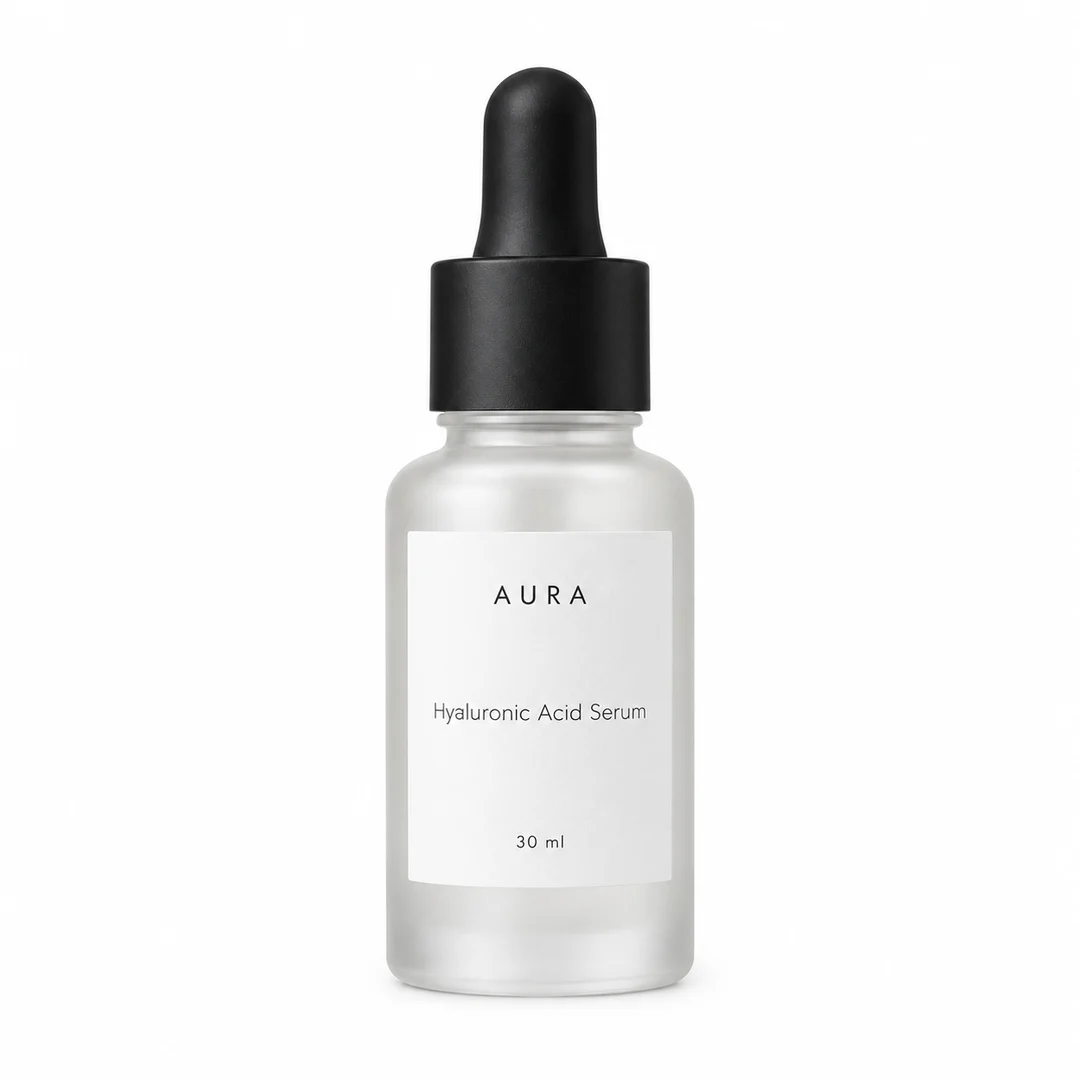
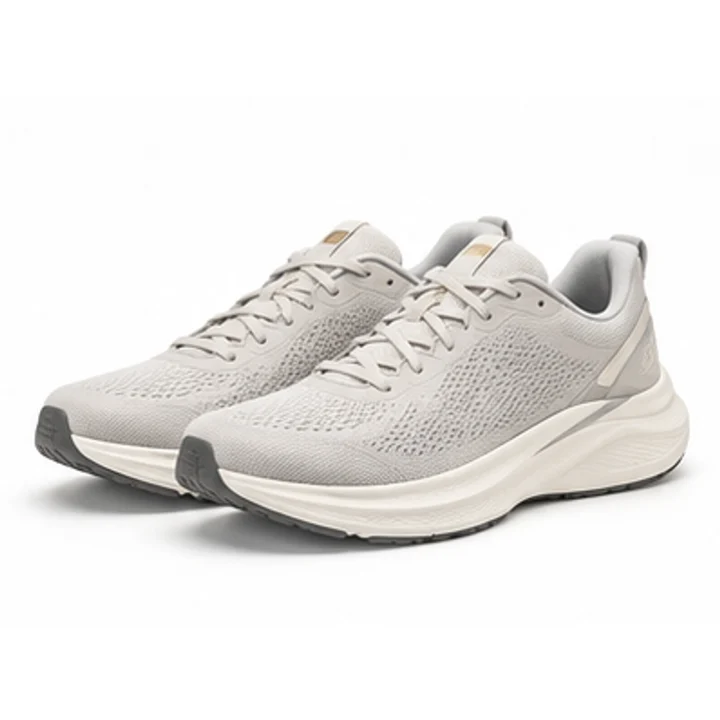
Here is a plain Shopify photo from the Northbank Supply sample store. This is what Meta gets from the sync.
How to use a different image in ads
Sometimes you want your ads to show a designed image, not the plain photo. You have two choices.
Change the photo in Shopify. This changes it everywhere, including your store. Most stores do not want a sale badge on their own product page.
Add a supplementary feed. A supplementary feed adds or replaces fields on items already in your catalog. Meta's page on Shopify images names this case. If the wrong image shows, check for "other data sources," like a supplementary feed, "that may be overriding the images from Shopify."
That override is how a designed image reaches your ads while your store stays as it is.
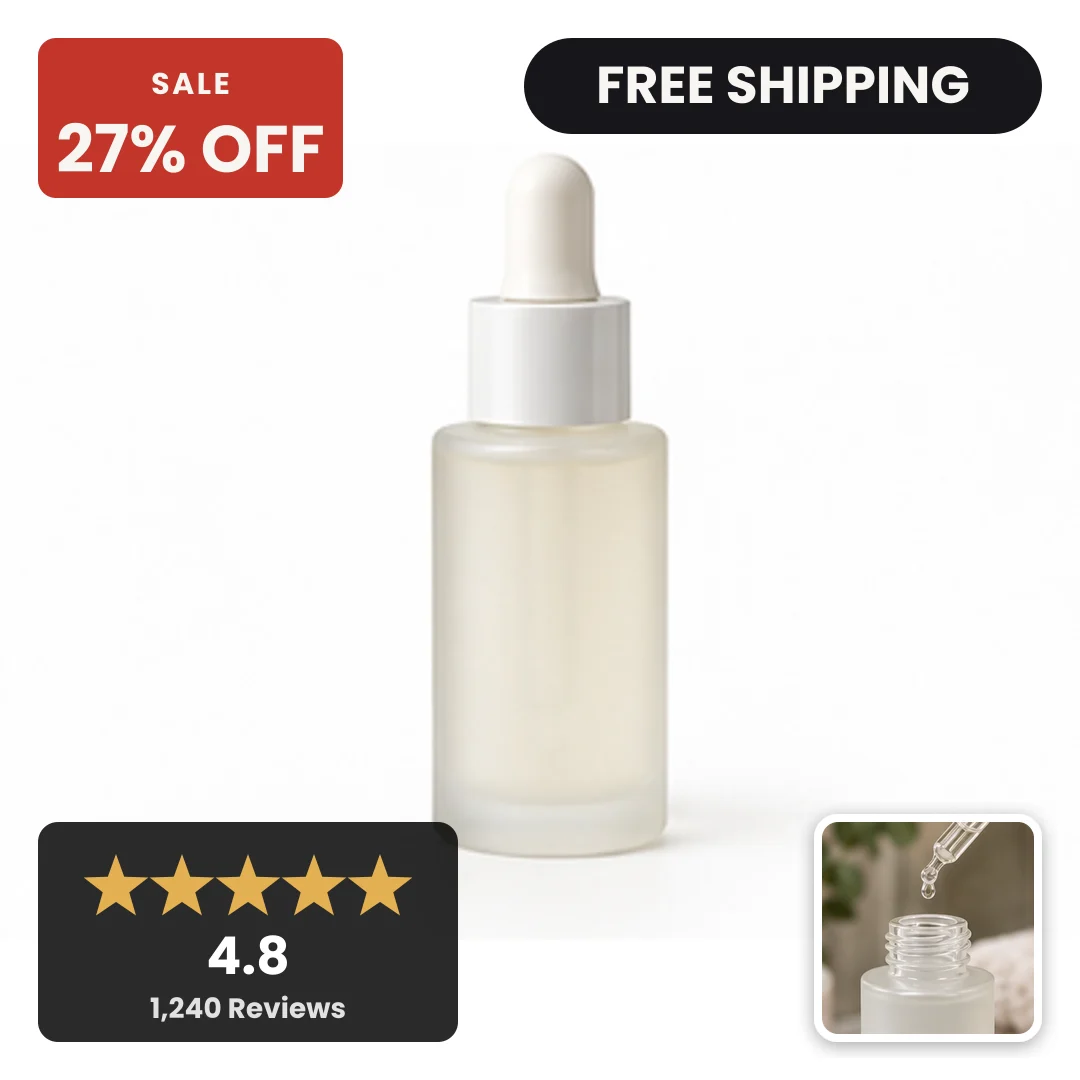
The price and rating on that card are sample data. The layout keeps the price and the stars off the serum itself.
One rule matters here. Meta only fetches a new image when the image link changes. The product data spec says to change the URL when you replace an image. Good tools give each new image a new URL.
Convinci works this way. It reads your Shopify store, builds the cards, and sends only the image fields through a supplementary feed. Your Shopify photos, prices and stock stay as they are. Try it on your own products in the free preview. See the plans on our pricing section.
Questions
- Which Shopify photo shows in my Meta catalog ads?
- The first, largest photo on the product becomes the main image in your catalog. Meta shows that one in ads and shops. The other photos sync as additional images.
- How often does Shopify sync products to Meta?
- Meta's help page says updated product data syncs to Commerce Manager every few minutes when you use the Shopify connection. Changes you make in Commerce Manager get overwritten by the next sync.
- Why is the wrong image showing in my catalog?
- Check the photo order on Shopify first, then save a small change to trigger a sync. If the order is right, another data source, like a supplementary feed, may be overriding the image.
- Can my ads use different images than my store?
- Yes. Add a supplementary feed that replaces the image fields for your catalog items. Your Shopify store keeps its own photos, and the ads use the new images.
- Do Shopify variant photos sync to Meta?
- Yes, usually one photo per variant. If a variant has no photo, it uses the product's main photo. Set a photo for each color so ads show the right one.
See these badges on your own products before you pay anything.
Try the free previewFree for 10 products. See pricing.
 Your store
 Your card