Product feeds
Shopify product images for Meta catalog ads (DPA)
Convinci team. Published 2026-09-11, updated 2026-09-26.
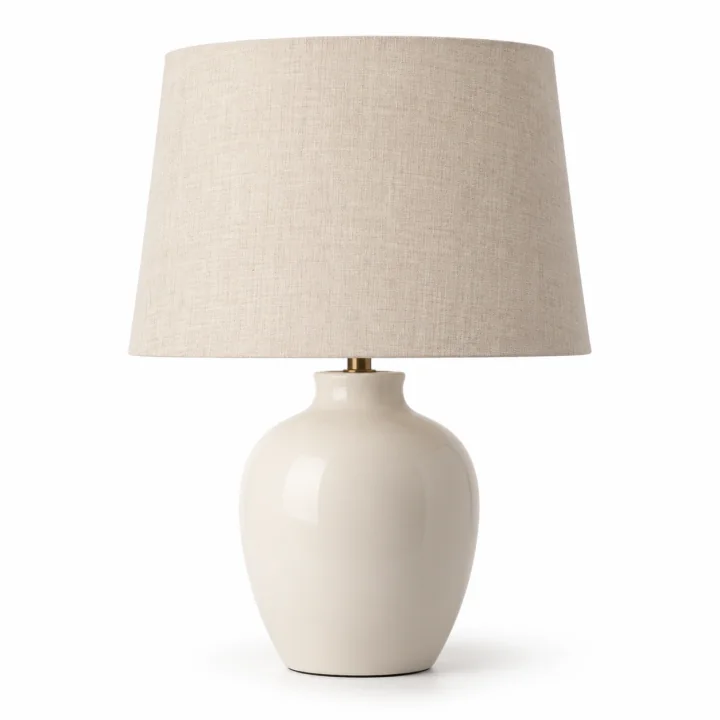

Shopify serves your product images through a CDN and your Facebook sales channel puts the first image of each variant into the catalog. Almost nothing about that pipeline is tuned for ads, and two of its defaults quietly cost you performance.
This is what to check, in order.
The numbers
| Setting | What to use | Why |
|---|---|---|
| Shape | Square, 1:1 | Meta crops every other placement from it |
| Size | 1200 by 1200 or larger | Retina phones, and room for a 9:16 crop |
| Maximum | 8 MB | Meta rejects larger files |
| Format | JPEG or PNG | WebP in a feed is refused by some surfaces |
| Safe area | Middle 60 percent | Stories and Reels crop hard |
| Background | Anything, white is not required | Meta reads the feed, not the picture |
Shopify itself accepts images up to 20 megapixels and 20 MB, which is well over what a feed wants. Uploading a 5000 pixel master is fine, because the CDN serves a resized version, but check what the feed actually carries.
The three fixes that matter
One, stop the crop eating the product
Meta takes your square and crops it to 4:5 for the feed and 9:16 for Stories and Reels. A 9:16 crop from a square keeps a tall middle strip and throws away the left and right thirds.
If your product photos are wide, like a sofa or a pair of skis shot side on, the Stories crop removes both ends. There is no setting for this. The only fix is padding: give the product margin inside the square so every crop still contains it.
Practically, keep the subject inside the middle 60 percent of the frame, centred.
Two, use the right image per variant
Catalog ads (also called dynamic product ads, or DPA) run at variant level. If a shopper looked at the charcoal sweater, the ad should show the charcoal sweater.
In Shopify that means every variant needs its own image assigned in the variant editor. A product level gallery that happens to contain one is not enough. When a variant has no image of its own, the feed falls back to the product's first image. A shopper who looked at charcoal gets retargeted with cream.
Check this in Commerce Manager rather than in Shopify. Open a few products in the catalog and look at what the image actually is.
Three, take control of the image URL
The image_link your feed carries is a Shopify CDN URL. That is convenient and it is also the reason you cannot put anything on the image.
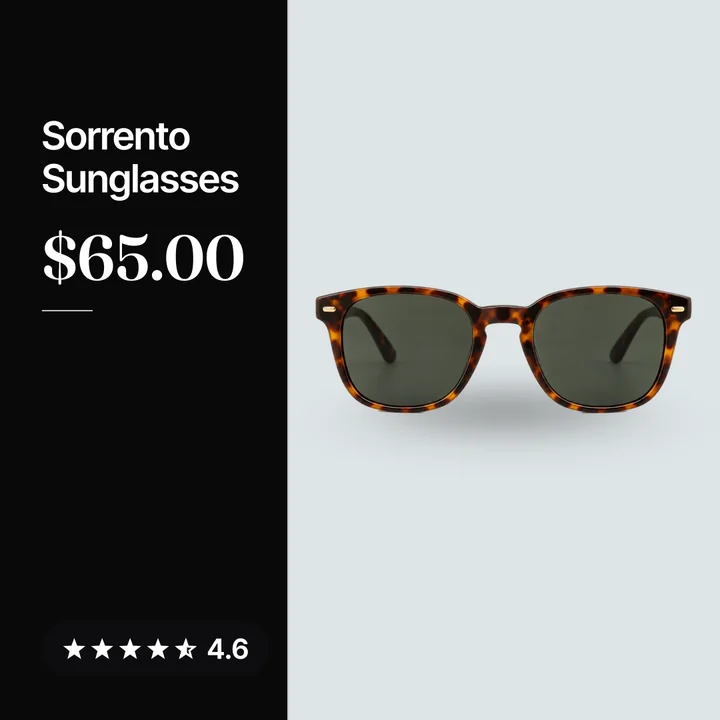
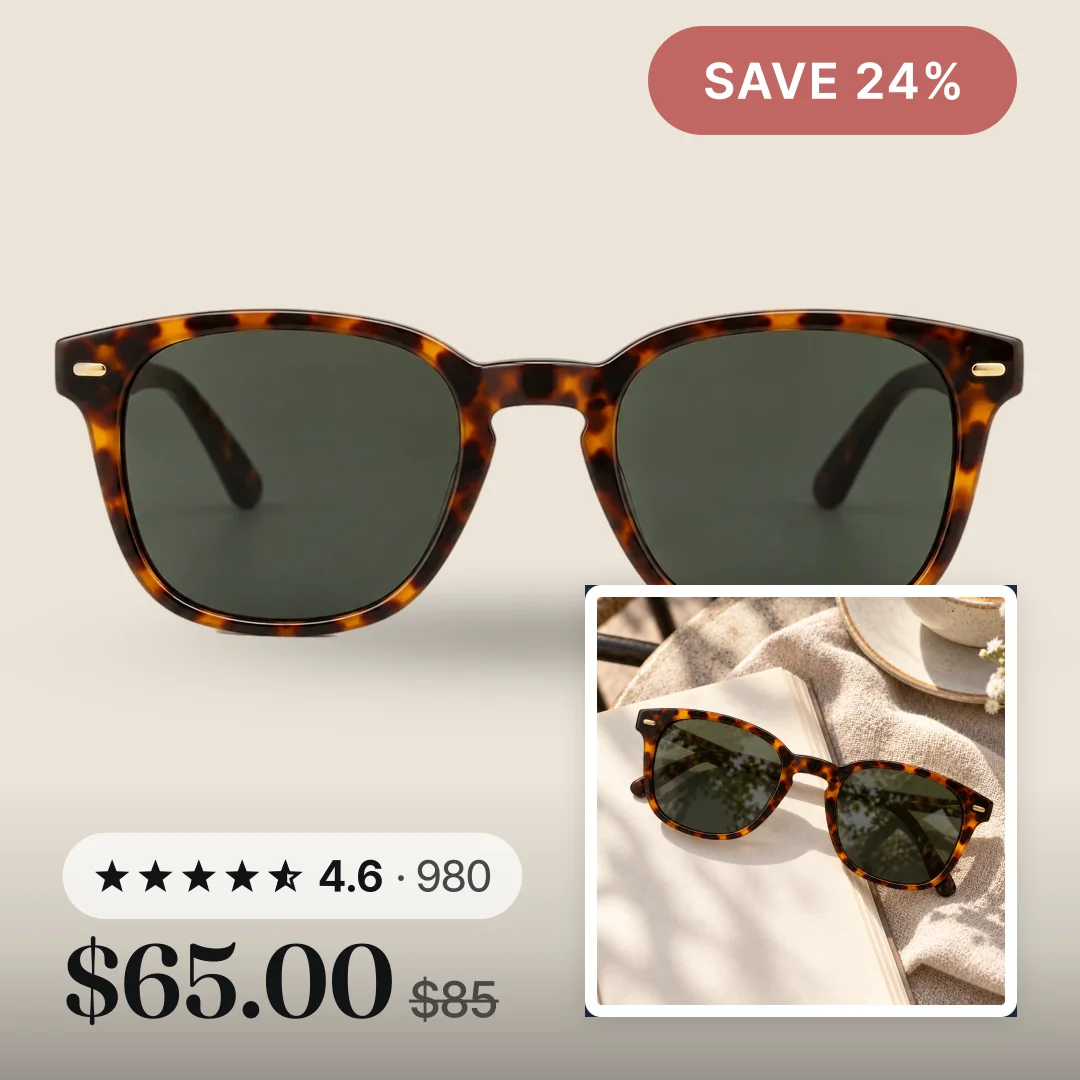
If you want a sale badge, a rating or a brand mark on the card, the feed has to point somewhere else. It needs an image you produced, not the raw product shot. The clean way to do that is a supplementary feed that overrides image_link for the products you are advertising, which leaves the storefront images alone. See supplementary feeds on Meta.
What about transparent PNGs
A transparent PNG is fine to store and bad to serve straight into a feed. Meta composites it on white in some placements and on a dark ground in others. A product with dark edges disappears on one of them.
If your masters are transparent, flatten them onto a colour before they reach the feed. That is also the cheapest way to make a catalog of white pack shots stop looking flat. See why dynamic product ads look bad.
File names and caching
Meta fetches each image_link and caches it. Changing the picture at the same URL does not reliably change the ad, because the old file is already cached.
So when you swap creative, swap the URL as well. Add a version to the file name or the path. A badged image at .../shoe-sale-v2.jpg updates cleanly, the same bytes rewritten at .../shoe.jpg might not.
A short checklist before a campaign
- Every advertised variant has its own image.
- The product sits inside the middle 60 percent of the square.
- The feed image is at least 1200 pixels on the short side.
- No transparent backgrounds reaching the feed.
- New creative uses a new URL, not the old one overwritten.
- A spot check of five products in Commerce Manager shows the image you expect.
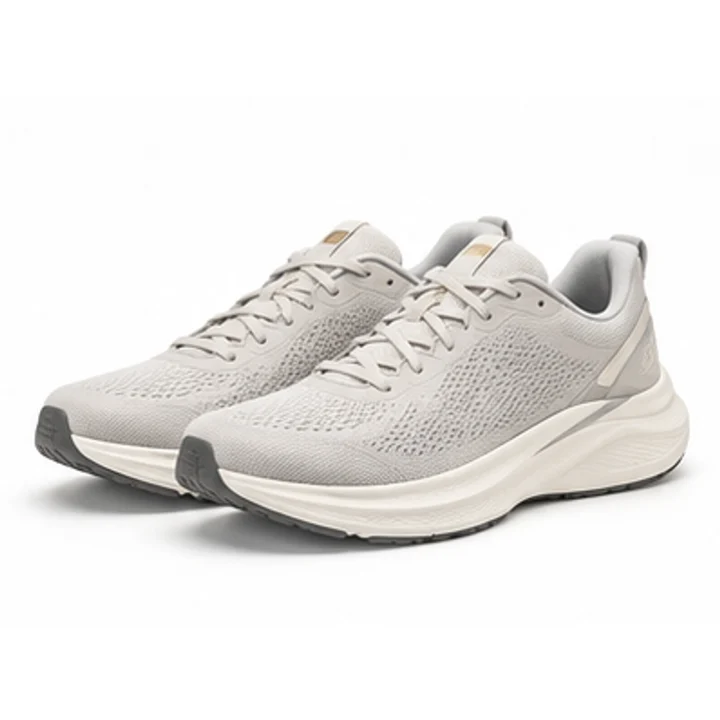
To see what your own Shopify images look like as finished catalog cards, paste your store URL into the preview. It reads your public product data and draws three of them.
To see which photo Meta picks and how variants sync, read how Shopify product photos become Meta catalog images.
Questions
- What size should product images be for Meta catalog ads?
- Square, at least 1200 by 1200 pixels, under 8 MB, as JPEG or PNG. Larger is fine and gives the Stories crop more to work with.
- Does Meta require a white background for catalog ads?
- No. That is a Google Shopping rule, not a Meta one. Meta identifies products from your feed data, so the background is a creative choice.
- Why is my catalog ad showing the wrong colour?
- The variant has no image assigned, so the feed fell back to the product's first image. Assign an image per variant in Shopify and re-run the feed.
- Can I use WebP images in a Meta product feed?
- Use JPEG or PNG. WebP is supported on the web generally but is refused by some catalog surfaces, and a refused image means the product stops serving.
- How do I get a badge onto a product image?
- Not in Shopify. Produce a badged copy of the image, host it, and point `image_link` at it through a supplementary feed so the storefront image is untouched.
- Why did my new image not appear in the ad?
- Meta caches the image at each URL. Publish new creative at a new URL rather than overwriting the old file, then check the product in Commerce Manager.
See these badges on your own products before you pay anything.
Try the free previewFree for 10 products. See pricing.
 Your store
 Your card