Catalog ads
Change Meta catalog ad images for a sale without new ads
Convinci team. Published 2026-10-12, updated 2026-10-12.


You want your catalog ads to look different for Black Friday. Maybe a sale badge, a new price, a festive frame. The usual way is to make a new ad. That works, but a new ad starts in Meta's learning phase. There is another way: change the pictures in your catalog and leave the ads alone.
This page shows how, step by step. It works for any promo: Black Friday, Boxing Day, New Year, a weekend flash sale.
The short answer
A Meta catalog ad (also called a dynamic product ad, or DPA) does not hold its own pictures. It pulls them from your catalog. So if you change the picture on each catalog item, the ads you already run show the new picture.
You change catalog pictures with a supplementary feed. It is a small file that points each product at a new image link. Meta reads it on a schedule you pick.
Why bother? Meta's significant edits page lists two edits that matter here. One is "Adding a new ad to your ad set". The other is "Any change to ad creative". Both send an ad set back into learning. With this method you do neither. You make no new ad and you edit nothing in Ads Manager.
Steps to change catalog ad images for a promo
- Make the promo version of each product picture. Put the badge, price or look on the image itself. Use the same size as now, 1080 by 1080 or 1080 by 1350.
- Give every new picture a new URL. Meta's product data spec says to use a new URL when you replace an image. Meta skips a picture whose link did not change.
- Build a supplementary feed with two columns: id and image_link. The id must match the id in your main catalog. Add additional_image_link if you use a second photo.
- In Commerce Manager, open your catalog, then Data sources. Add the file as a supplementary feed on the catalog that your ads use.
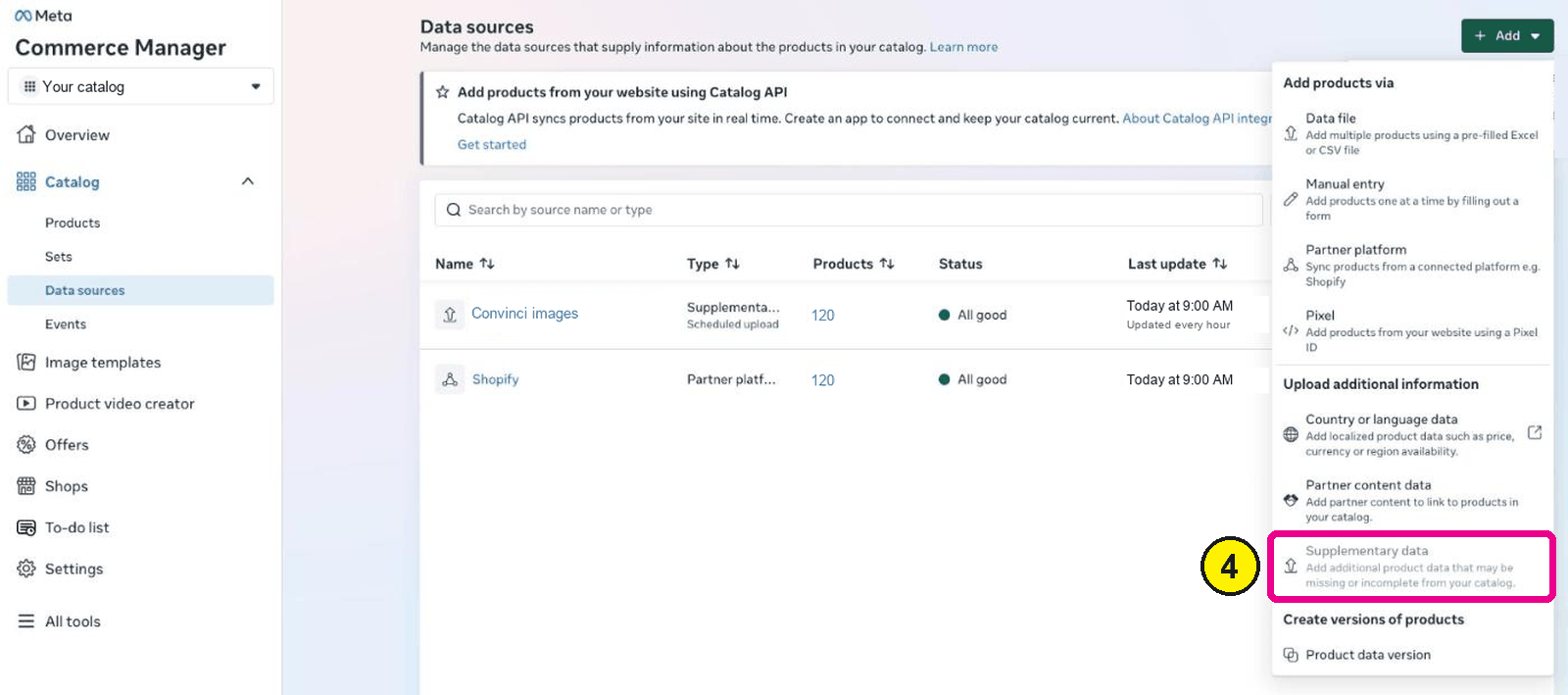
Commerce Manager, Catalog, Data sources, Add. Screens as of Oct 2026. - Set the fetch schedule to Hourly for the promo week, so Meta checks for changes often.
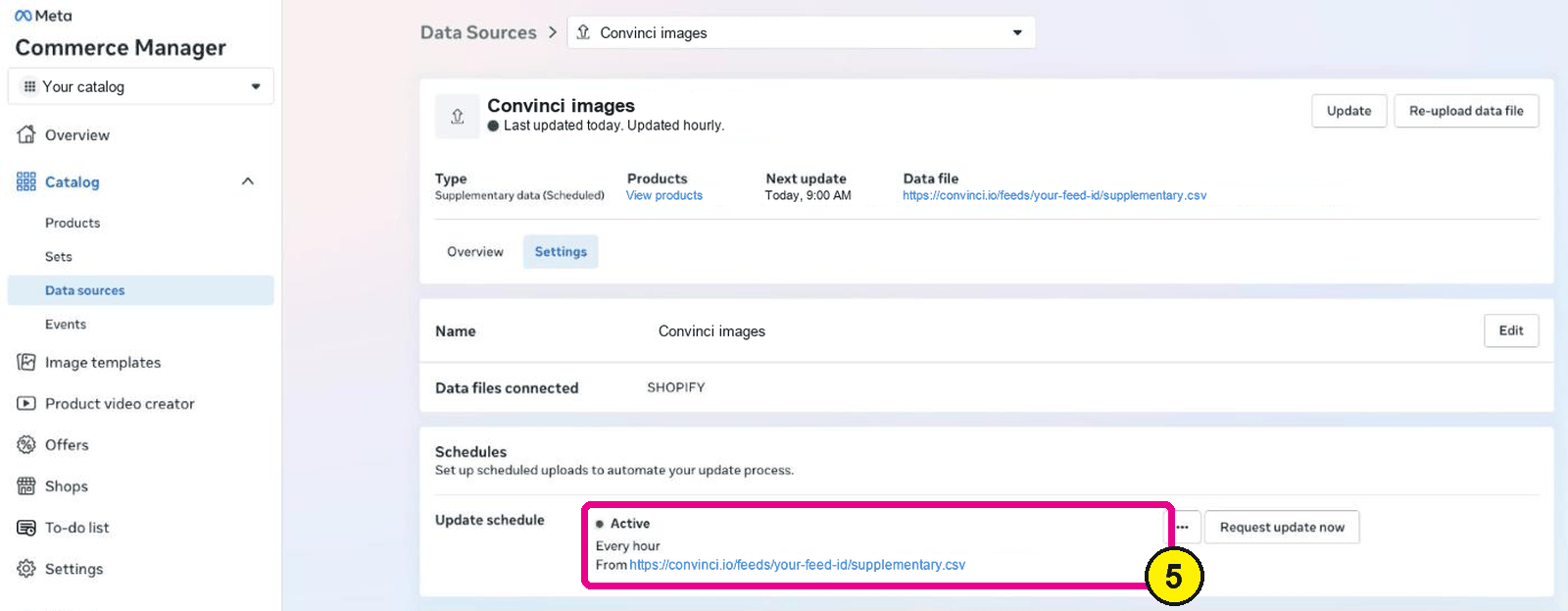
Commerce Manager, Data sources, your feed, Settings. - After the next fetch, open a few items in Commerce Manager and check the new picture shows.
- When the promo ends, point the feed back to your everyday pictures, or remove it.


That is the whole method. Your campaigns, ad sets, ads, prices and stock are not touched.
What changes and what stays the same
| Changes | Stays the same | |
|---|---|---|
| Product pictures | Yes, through the feed | |
| Your ads in Ads Manager | Yes, not edited | |
| Ad sets and campaigns | Yes, not edited | |
| Prices and stock | Yes, still from your store | |
| Product set filters | Yes | |
| Ad text and headline | Yes |
One thing to know. Results can change when pictures change. That is the point of a new look. Watch the numbers for a few days the same way you would after any change.
How long it takes to show
Meta fetches a scheduled feed hourly, daily or weekly, as you set it. Once it fetches, the new pictures show on the items in Commerce Manager. Live ads then pick them up. For more on timing, read how long until catalog changes show in ads.
Plan to switch a few hours before the promo starts. Do not wait until midnight on the day.
Doing it by hand vs with a tool
You can do every step above with a spreadsheet and an image editor. For 20 products that is an afternoon. For 500 products and four promos a year, it is a lot of files, and every file needs a new URL.
This is the job Convinci does. You paste your Shopify store link and pick a design. Convinci makes the picture for every product, hosts it at a new URL and gives you one feed link to add in Commerce Manager. For each promo you make a look, and the whole catalog switches to it. On the Pro plan you can pick each look's start and end dates, so it switches on the day and back after.

To see your own products with a promo look, try the free preview. For the full promo plan, read Black Friday catalog ads.
Mistakes to avoid
- Reusing the same image URL with a new picture behind it. Meta may keep the old one.
- Editing the ad at the same time. Then you cannot tell what caused a change, and the edit itself restarts learning.
- Pointing the feed at the wrong catalog. Check which catalog the ad set uses.
- Forgetting to switch back. An old Black Friday badge in December confuses shoppers.
- Sale badges on full price items. Only put a percent off on products that are really on sale.
Questions
- Can I change catalog ad images without editing the ad?
- Yes. The pictures come from your catalog. Change the image link on each catalog item with a supplementary feed. After Meta fetches the feed, the ads you already run show the new pictures.
- Does a new ad restart the learning phase?
- Yes. Meta lists adding a new ad to an ad set as a significant edit. A significant edit sends the ad set back into the learning phase, where Meta says results are less stable.
- Do I need a new URL for every new picture?
- Yes. Meta's product data spec says to use a new URL when you replace an image. If the link stays the same, Meta may not fetch the new picture.
- How do I switch back after the promo?
- Point the supplementary feed back to your everyday pictures, or remove it from the catalog. With Convinci on the Pro plan, each look ends on its end date by itself.
- Does this change my prices?
- No. A supplementary feed with only image links changes only the pictures. Prices and stock still come from your store's main feed.
See these badges on your own products before you pay anything.
Try the free previewFree for 10 products. See pricing.