Product feeds
How to request a Meta catalog update
Convinci team. Published 2026-10-08, updated 2026-10-08.
 Your store
 Your card
Meta fetches a scheduled feed on the schedule you set, hourly at the fastest. Most of the time that is fine, and you never need to think about it.
It is not fine right after you have just changed something. A new feed link, a new data source ranking, a setting you just turned off. You want to see the result now, not on the next automatic fetch, which could be close to an hour away.
Commerce Manager has a button for exactly that case.
Where it is
- Open Commerce Manager. Click your catalog.
- Click Data sources.
- Find the row for the feed you want to refresh.
- Press Update next to that row.
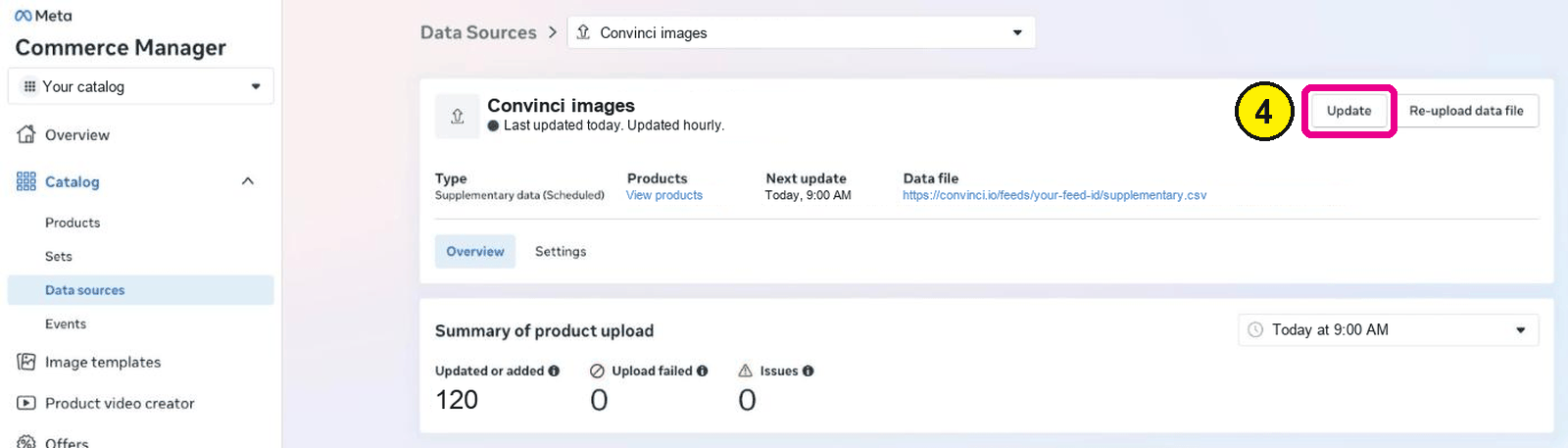
Commerce Manager, Catalog, Data sources, your feed. Screens as of Oct 2026. - Open one product in Catalog, then Products, to confirm.

That is the whole action. There is nothing to configure beyond the press itself, and no confirmation step to click through.
When to press it
- Right after adding your Convinci feed, so you skip the first scheduled fetch.
- Right after changing data source priority for Image. See data source priority explained.
- Right after turning off automatic website updates. See that guide.
- After fixing a content ID problem. See "content IDs do not match".
A ranking or settings change only takes effect the next time Facebook reads your feed. Update skips the wait, so you see the result in the same session you made the change.
How long it takes after that
Pressing Update starts the fetch right away. Two things still take their own time after that:
- The catalog itself: usually within minutes.
- Images in live ads: can lag behind, because a changed image has to be fetched and processed on its own.
This page covers the Update button specifically. For the fuller picture of timing across Shopify syncs and scheduled feeds, read how long until changes show in ads.
If pressing Update does not seem to help
Update forces a fetch. It does not change which source wins a field, and it does not fix a product that is missing from the catalog. If the picture still looks wrong after an update, the cause is usually a ranking problem or a missing product, not a stale fetch.
See why one variant changed and "content IDs do not match" for those two cases.
What to check after
Open one product under Catalog, then Products. Confirm the field you changed shows the new value. If not yet, wait a few more minutes before trying again, rather than pressing Update repeatedly.
If you are not sure it ran
Commerce Manager does not always show a visible spinner for the fetch itself. The most reliable sign is the product's own field, not a progress bar on the Update button. Open the product, check the value, and trust that over any on screen status.
One more thing to know
The Update button applies to one data source at a time. If you run more than one feed against the same catalog, pressing Update on your Convinci feed does not also refresh the others. Press Update on each one you want to refresh right away.
Questions
- Does Update skip the wait entirely?
- It starts the fetch now rather than waiting for the schedule. The catalog still takes a short time to process it.
- Can I request an update through an API?
- No. The Update button in Commerce Manager is the documented way to force an early fetch.
- Do I need to do this every time?
- No. Your feed refreshes on its own schedule with no action needed. Update is for skipping ahead of that.
- Why does my ad still show the old picture?
- Give it longer. If it still has not changed, check your data source ranking; see [why one variant changed](/learn/meta-catalog-one-variant-image-changed).
- Can pressing Update too often cause a problem?
- No, but it will not speed anything up beyond the one fetch it triggers. Pressing it again right away just repeats the same fetch.
- Does Update work the same for a full feed?
- Yes. The button sits on the data source's row regardless of whether that source is a supplementary feed or a full feed.
See these badges on your own products before you pay anything.
Try the free previewFree for 10 products. See pricing.